
When the AI cut is nearly right: fixing the last ten percent by hand on the timeline
A cut a word late should be a drag, not a sentence. The strip’s tools, the speed presets, autosaved versions, and how the editor picks up where your hand left off.
The worry about editing by prompt is the last ten percent. The cut comes back and it is right, except one cut is a word late, one shot runs half a second long, and the slow-motion should start on the take-off rather than before it. Typing three sentences to fix three frames is slower than an editor would ever accept.
So Narrative’s timeline is editable by hand, with the tools an editor already knows, and what you do by hand is what the editor works from next. This post is the list of what you can do on the strip without a prompt, what it does with your changes, and where the line is. The snowboard edit is open to anyone; its first edit makes a copy that is yours.
Trim, move, nudge
Hover a clip and its edges show handles. Drag an edge to trim by whole frames; the edit never lands between frames. Drag the body to move the clip. With a clip selected, , and . nudge the picked edge, or the whole clip, one frame earlier or later, and ⇧ makes that ten. ⌫ deletes it. A dragged edge snaps to the cuts around it, the playhead and the ends of the edit, within a few pixels, so lining a cut up with a beat you parked the playhead on is a drag, not a count.
Three tools: V, C, A
- Select (V). The default. Click, drag, trim.
- Cut (C). The razor. Click a clip and it splits at that frame; nothing else on the timeline moves. Both halves keep playing the footage they had, so the split is invisible until you do something with it.
- Track select forward (A). Click and everything from that time on is selected. Drag it and it all moves together; hold ⇧ for one track only. ⌫ removes the lot. Opening a gap for a new shot is one drag.
Two more gestures live on the clip body. A plain drag on a clip reorders it: drop it between two others and they close up around it. Hold ⌥ and drag, and the clip slips: its in and out points move together through the source footage while the clip stays exactly where it is on the timeline. That is the fix for “right length, wrong moment”, and the playhead parks on the clip’s first frame so you can see what you are slipping to.
Speed
Select a clip and press > or < to step its speed through the presets: quarter, half, three-quarter, normal, 1.25, 1.5, double, triple, quadruple. A clip that is not at normal speed wears a badge at its right end; click the badge, or double-click the clip, for a popover with the presets and a number field that takes anything from 0.05× to 20×. The clip’s length on the timeline follows its speed, and on export the sound is time-stretched with its pitch kept, so a half-speed voice is slow, not deep.
Speed ramps, where the slow-motion begins mid-shot, are two clips: cut at the take-off with C, then set the second half to half speed. That is how it is done in any editor, and it is three actions here.
What happens to your changes
They save themselves. A gesture is staged as you make it, and once your hand has been still for a moment the change is written as a version, the same version history the editor’s own turns go into. ⌘Z steps back. There is no Save button to forget.
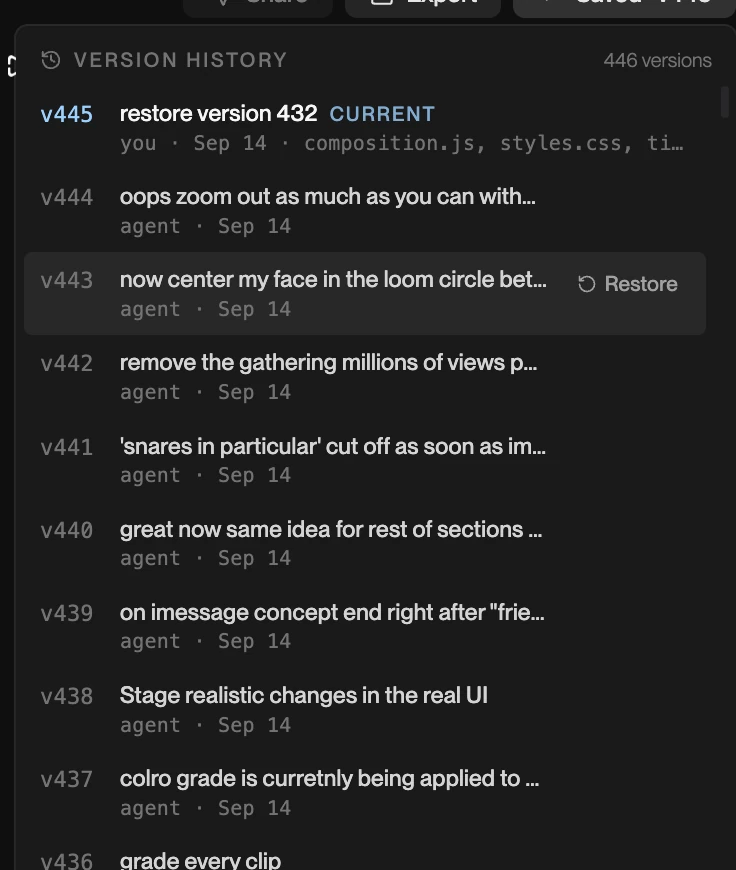
More importantly, the editor knows what you did. Its next turn starts from your saved state, not from the last thing it made, and it is told what changed: which clip you trimmed, what you cut, what you slipped. Ask it to “tighten the middle section” after you have moved a cut by hand and it works around your cut instead of putting it back. Titles and effects pinned to a clip move with the clip when you move it, and split with it when you cut it.
The one rule of two hands on one edit: while the editor’s turn is running, the strip is read-only, so its commit never lands on top of a drag. It says so, and the strip unlocks when the turn ends.
Where the line is
The strip edits time: what plays when, for how long, at what speed. It does not edit looks. Colour has its own panel with wheels, curves, LUTs and scopes; captions, titles, transitions and motion are things you ask for, and there is no keyframe editor to drag them around in. If a title sits ten pixels too high, that is a sentence, not a drag. In practice this is the split most people want: the timing by hand, because timing is felt, and the design by request, because design is described.
Projects made before this timeline shipped open with a note, “This is an old project”, and a read-only strip. One button asks the editor to convert it, and from then on it edits like the rest.
Try the three-frame fix
Open the snowboard edit. Hover the cut into the triple run and drag its edge a few frames; watch it snap to the beat where the playhead sits. Press C and split the last run at the take-off, then < twice on the second half for half speed. That first gesture makes the edit yours (it starts a free trial), and the version it saves is the one the editor picks up when you ask for the next change.