
Caption styles: seven looks, picked for your video, changed with one tap
Basic, Boxed, Word, Pop, Reveal, Highlight and Stack: what each caption look is for, how one is chosen before the first cut, and how to change every caption at once.
Captions in Narrative used to be whatever the editor wrote for that video. Now they come from a style library: a set of finished looks, one of which is chosen for your video before the first cut, and any of which you can switch to with one tap. Every caption in the video changes together, the words stay where they were, and the words themselves are yours to correct. This is what is in the library, how the first look gets picked, and how to change it on the phone and on the web.
The looks
The iPhone app offers seven. Each is a complete decision about typeface, size, placement and motion, not a font you still have to style.
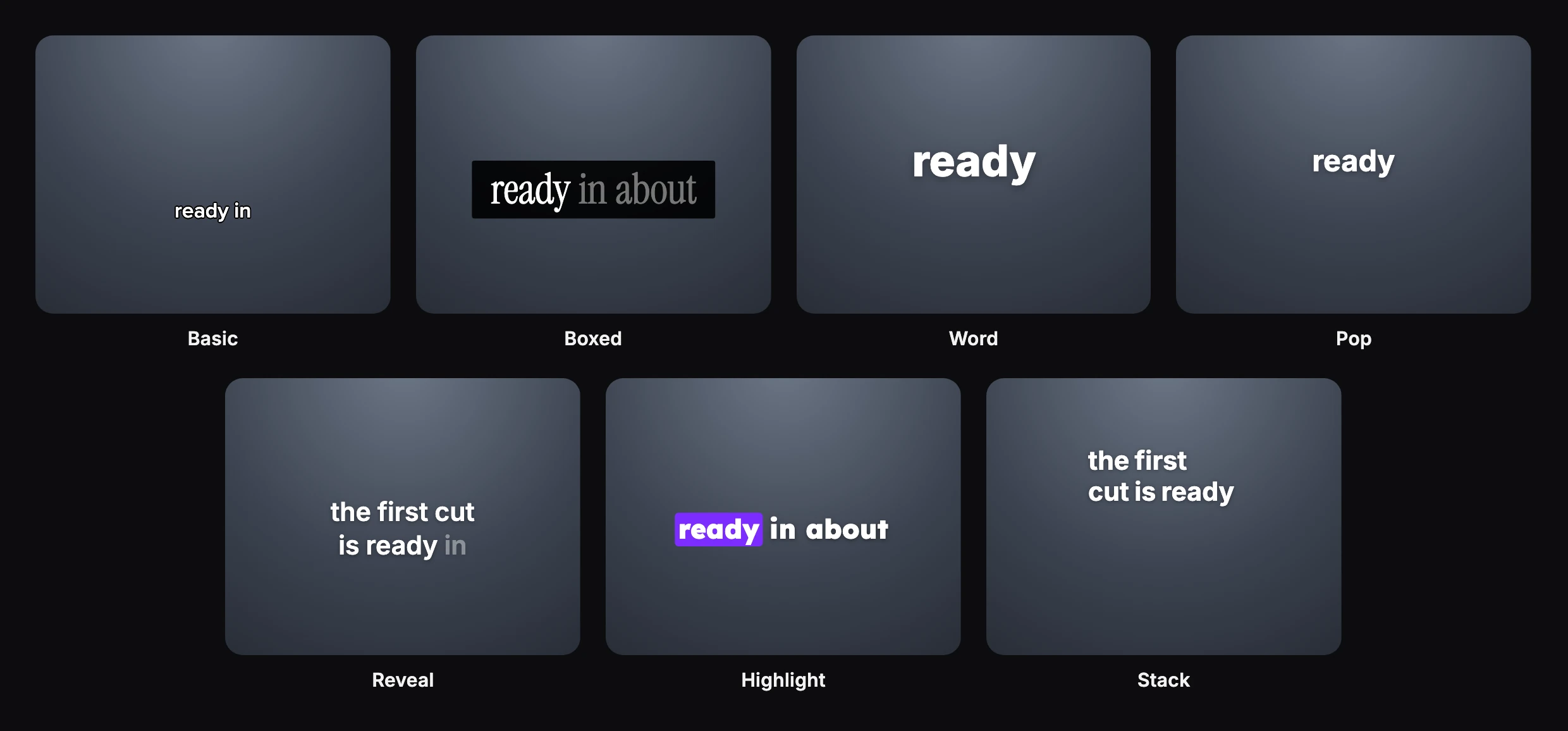
- Basic. One or two lowercase words at a time, white with a thin black ring, just under the speaker’s chin. Small and quiet; it reads on any footage and lets the person carry the video.
- Boxed. A line of up to five words in a condensed serif on a solid black block. The words already said are bright and the ones to come are dimmed, so the line lights up as it is spoken. Editorial; suits a founder, a story, a product with taste.
- Word. One big bold word at a time, cut in exactly as it is said. Every word lands. For hooks, hot takes and quick tips.
- Pop. One smaller word at a time that pops in with a slight overshoot. Friendly rather than loud.
- Reveal. Up to two centred lines laid out at once, each word brightening as it is said. The viewer can read ahead; good for explainers and longer thoughts.
- Highlight. One bold line with the spoken word riding a purple chip from word to word. Keeps the eye on the current word; tutorials and reviews.
- Stack. Left-aligned lines of two or three words that build downward as they are said. A thought assembling on screen; monologues and storytelling.
The web editor’s picker carries those seven and more, among them a plain Basic with no ring, a calm display serif (Lyra), a loud comic look with lime keywords (Monster), a clean two-size look with no colour (Million), and a soft lifestyle look that mixes a sans with a serif italic (Cove). The editor itself can use any look in the library when you ask for it by name or describe it.
How the first look is chosen
You are not asked. When the first request on a project is going to put spoken words on screen, the look is decided before the edit starts, from two things: what you wrote, and pictures of your footage. Each look in the library is described by what it looks like and what it reads as, and the choice is made against those descriptions. A soft-spoken skincare routine and a fast list of tips shot in a car do not get the same captions, and neither needed a question to find out.
The choice is kept on the project, so captions added three requests later match the ones from the first. If you already know what you want, say it in the prompt (“boxed captions”, “one word at a time”, “no outline”) and that is what is drawn.
Change it with one tap
On the phone. Tap a caption on the timeline. The tools change to the caption’s own, and the first is Style. It opens a tray with three tabs:
- Styles: the seven looks, each tile playing three sample words the way that look plays speech. Tap one.
- Fonts: keep the look’s motion and layout, change the face. Fonts you have imported and the ones you have starred are at the top.
- Border: None, Outline, Inverted Outline, Background, Inverted Background or Shadow, for footage where white text needs help.
On the web. Click a caption on the timeline or on the stage and open the Text tab. A Caption style group appears above the usual text controls, with a note of how many captions will change.
In both places the pick applies to every caption on that track at once, because they are linked: you never restyle forty phrases one by one. The new look lands on the picture as you tap, the captions stay at the height they were, and undo takes it back as a single step.
Fix the words
Speech recognition gets names and brand words wrong, and a caption with a misspelt product name is worse than no caption. On the phone, select a caption and tap Edit. A sheet lists every phrase of the video under its time, with the one at the playhead lit. Tap a line and the video jumps there with the keyboard open on that line; type the correction and tap the check. Tap another line and the keyboard moves across without closing. Delete removes a phrase altogether, which is the quick way to lose an “um” that survived the cut.
A corrected phrase keeps its timing: the new words are laid over the moment the old ones were spoken. Each correction is one entry in the history and one undo.
What a caption is now
On the timeline the captions sit on their own track as one block per phrase. A phrase ends at the end of a sentence, at a clause break once it has a few words, or after about seven words, and always at a cut. Nothing is drawn over a silence. That shape is why the rest works:
- Re-cut and they follow. Trim a clip or ask for a tighter cut and the captions re-form around the words that survived. Trimming the front of a caption cuts words off the front; it never slides the rest out of time with the speech.
- Move them. “Captions higher” or “captions at the bottom third” moves all of them. Basic sits under the chin by measuring where the face is in each clip, so it stays clear of the mouth when the framing changes between shots.
- What you see is what exports. Every fade, pop and highlight is computed from the time on the timeline, so a paused frame, a scrub and the exported file show the same picture.
Asking for captions
The request can stay short, because the look and the size are no longer yours to specify unless you want to:
Make this a TikTok with captions. Cut the parts where I mess up or say something twice, under a minute.
Follow-ups that work as written: “switch the captions to Highlight”, “no outline on the captions”, “captions a bit lower”, “turn the captions off”. For size, placement and the platform’s safe areas, the guide to readable captions on vertical video still applies; for cutting the mistakes out of the take first, see cutting retakes and pauses.
Get it
Caption styles are in the current iPhone app and in the web editor. Record yourself saying two sentences, ask for captions, then tap the caption and try each look on your own words; it takes less time than reading this section did.