
How to colour grade a video with AI: match the shots first, then choose one look
Correction first, look second. How the editor measures a frame before it grades it, every control in the Color tab, why your grade and its grade are the same field, and a few starting numbers.
Most phone footage is not badly shot; it is unmatched. One clip was in shade, the next in sun, the third under a shop’s lights, and the cut jumps because the colour jumps. A grade fixes that first and adds a look second. This is how both are done in Narrative, by asking and by hand, and why the two never fight each other.
Correct first, then the look
Grading is two jobs in a fixed order. The first is correction: white balance and exposure until skin reads as skin and whites read as white, then contrast, then saturation. The second is the look: a split tone, a LUT, grain, a vignette. The order matters because a look laid over unmatched shots makes the mismatch more obvious, not less; teal shadows sit differently on a warm clip and a cool one, and the eye catches the difference at every cut.
That is the order the editor works to (exposure and white balance, contrast, saturation and midtones, an optional split tone, one subtle finish) and it is the order to use yourself. The correction is per shot, because every shot was lit differently. The look is usually one decision for the whole cut.
How to ask
- “Match the second shot to the first.”
- “Warm the whole thing up a touch.”
- “Make it feel like dusk.”
- “A teal and orange look, but keep it at about 60 percent.”
- “Fine film grain, nothing you would notice.”
- “Lift the shadows on the interview without blowing out the window.”
What happens next is the part that makes a difference. The editor does not look at a thumbnail and guess. It measures the frame the way a colourist reads a scope: the black and white points and what is clipped, the colour cast in the shadows, the mids and the highlights, the scene’s white point in Kelvin and the temperature and tint that would neutralise it, the saturation, the eight hue bands and how much of the frame each one holds, and how far skin sits off the skin line of a vectorscope. Then it writes the grade in the units the sliders use, and checks the result by measuring again. Measure two shots in one call and it reports the change that would bring the second to the first; that is what “match these” is.
A grade is per clip. A look normally goes on every clip at once, but two shots that were lit differently need different numbers to meet in the middle, and the editor writes those separately. And a request that means “warm it” merges over what the clip already has: your own grade is not wiped by a nudge. Say “reset the colour” when you want a clean slate.
By hand: the Color tab
Press Color in the left rail. The panel grades the clip under the playhead and says which one it is. Above the controls a waveform runs live, as an RGB parade or as luma; it tells you where the blacks sit and whether the highlights are clipping before your eye does. Six sections:
- Primary. White balance (temperature, tint, and an eyedropper: click a white or neutral grey in the picture and both are set to make it neutral); tone (exposure in stops, contrast about a pivot, highlights, shadows, whites, blacks); colour (saturation, vibrance, hue rotate). Exposure, highlights and shadows work in linear light, so a stop is a stop.
- Wheels. Lift, gamma, gain and offset. Lift raises the shadows without touching white, gain scales the highlights without touching black, gamma bends the mids, offset shifts the whole image. Drag to push, hold ⇧ for finer, double-click to centre. Split tone sits underneath: a hue and a tint for the shadows, another for the highlights, and a balance between them.
- Curves. A master luma curve and one per channel; click to add a point, double-click a point to remove it.
- Hue. Eight ranges (red, orange, yellow, green, aqua, blue, violet, magenta), each with hue shift, saturation and luminance. The bands only bite on pixels that already carry colour, so neutrals and skin edges stay clean.
- Look. Texture (sharpen, grain, grain size), halation (the bloom around highlights, with a threshold and a radius), vignette (negative brightens the edges), and the strength of the creative LUT.
- Presets. Three built-in looks, your own
.cubeLUTs (drop one on the panel; it is read before a byte is uploaded, so a file that is not a LUT is refused with the reason), Copy grade and Paste grade for carrying a grade between clips, and Apply to all clips.
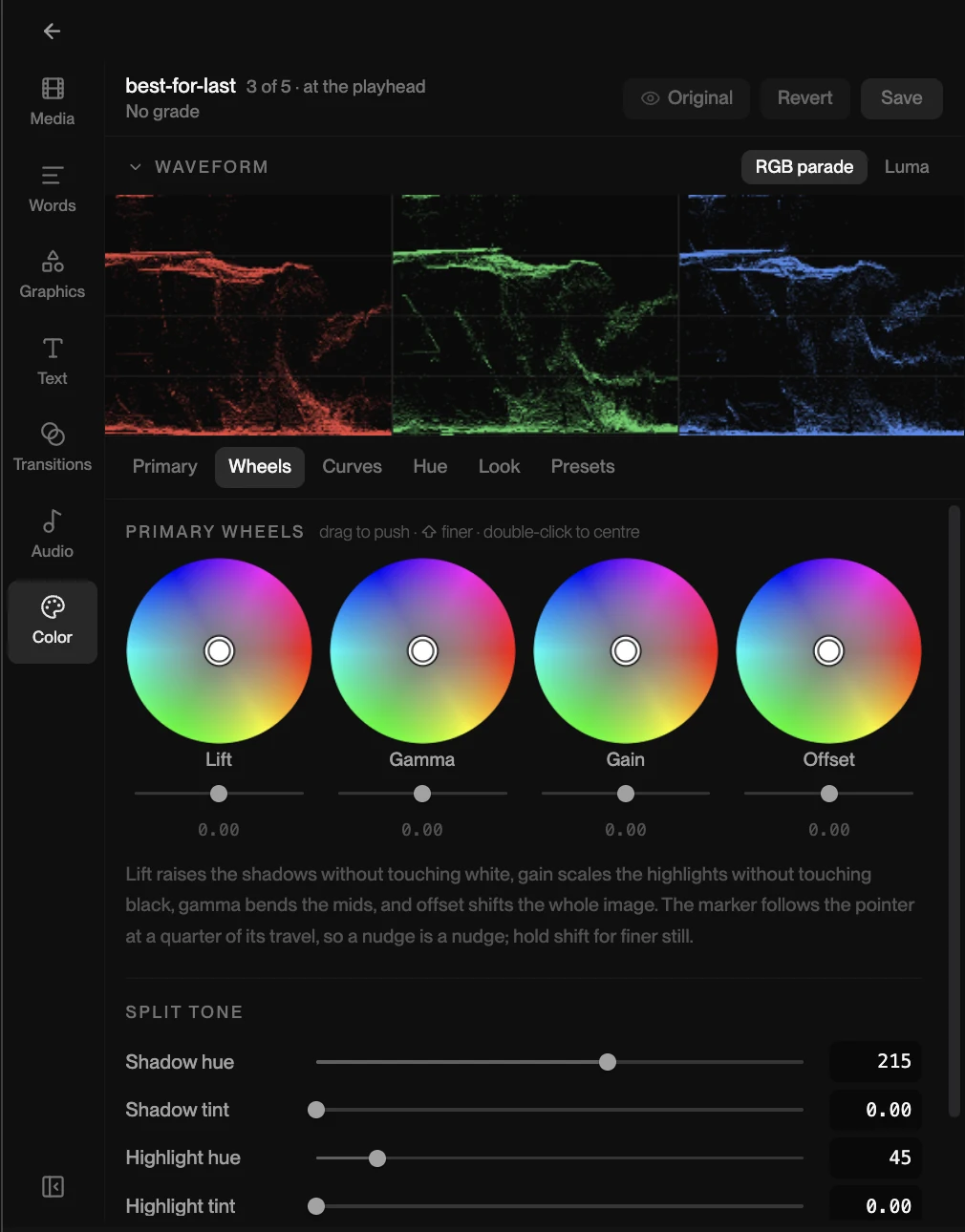
Hold Original to see the clip without its grade. Every released slider, preset, paste or reset is one draft step, and ⌘Z walks back through them; Save writes the whole draft as one version, Revert drops it. Nothing reaches the saved edit until you press Save, so you can wander.
One grade, everywhere
Whether you moved a wheel or asked for it, the grade is the same field on the same clip in the timeline. The preview applies it live, the export applies the same numbers, and the iPhone app plays the same grade (the phone fetches your LUTs along with the project’s fonts). Ten clips with one look share one grade. A trim, a reorder or a reframe keeps it, because it belongs to the clip and not to a place on the strip.
That shared field is also why the two ways of working do not collide. Ask the editor to match the shots, then open the Color tab and take the look down a little; ask again later for “slightly colder” and it moves what you left, not what it remembers.
Starting points
Numbers are footage-dependent, but a few habits hold up:
- Small exposure moves. A third of a stop is a big change on a phone clip; a full stop is a rescue, not a grade.
- Contrast about the pivot. A little over 1 with the pivot left near its default gives the filmic lift without crushing the blacks; watch the parade for where the shadows land.
- LUTs at less than full strength. A LUT was built for someone else’s footage. Somewhere around half to two-thirds is where it usually stops looking like a filter.
- Grain low, vignette wide. Grain you can name is too much; keep it near the bottom of its range. A vignette with a wide radius and a soft feather draws the eye in without announcing itself.
- Skin decides. Whatever the look, if faces have gone orange or grey the correction underneath is wrong. Fix the white balance before touching the look again.
See one
Open the explainer, press Color, drag the Gain wheel a little toward orange, and hold Original to compare. The scope moves with you. Opening it needs no account, saving a grade on it starts a three-day free trial, and the web editor runs on a computer; on a phone, the iPhone app is the way in. For the hand tools on the timeline itself, the hand-editing post covers trims, cuts and speed.